Stream Smarter. Watch Better.
FAST ORDER
FAST ORDER
IPTV4CA · COMPLETE SETUP GUIDES

Choose your device.
Follow the steps.

Select a device or player to reveal clear, numbered setup instructions. Only the chosen guide will appear.

Keep your subscription details ready. Screens and menu names may differ depending on your app version.
Choose a device above to see its setup instructions.

Amazon Firestick — Complete Setup

Downloader & Smarters Pro. Follow each step in order and check the subscription details carefully.

  1. On the Fire TV Home screen, open Find → Search.
  2. Search for Downloader by AFTVnews, choose Get or Download, then Open.
  3. For installation outside the official app store, verify the publisher and the software source before proceeding. IPTV4CA’s supplied Downloader reference is 224877; its destination has not been independently verified.
  4. After installing a trusted compatible IPTV player, open it and select Login with Xtream Codes API.
  5. Enter playlist name IPTV4CA, your server URL, username and password exactly as supplied.
  6. Select Add User or Login. Wait for your playlist to load, then test playback.
Need help? Double-check your details and contact IPTV4CA support if your setup does not load.

IPTV Smarters Pro — Complete Setup

XC API / M3U. Follow each step in order and check the subscription details carefully.

  1. Install a compatible IPTV Smarters player from a trusted app source for your device.
  2. Open the player and select Add User or Add Playlist.
  3. Choose Login with Xtream Codes API if you received a server URL, username and password.
  4. Enter playlist name IPTV4CA plus the server URL, username and password supplied by your provider.
  5. Tap Add User or Login and wait for channels, movies and programme information to load.
  6. Test a channel. If login fails, recheck the server URL and credentials.

Reference screenshots

These screenshots come from an earlier version of the setup guide. Interface details may vary.
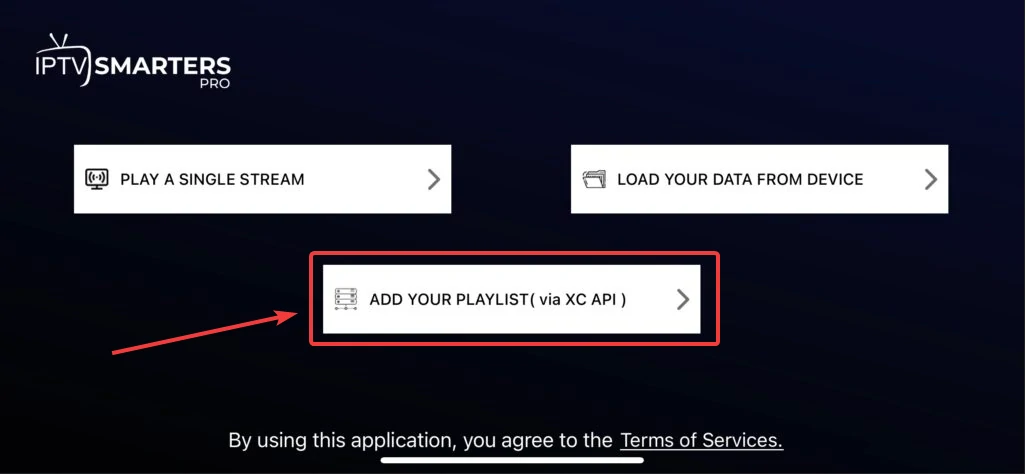
<strong class=IPTV Smarters Pro reference screenshot 1″/>
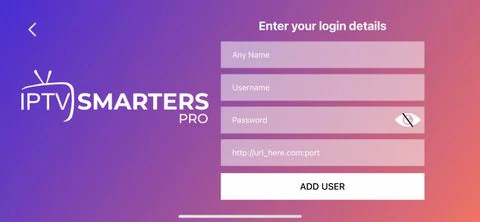
<strong class=IPTV Smarters Pro reference screenshot 2″/>
Need help? Double-check your details and contact IPTV4CA support if your setup does not load.

Apple TV — Complete Setup

Smarters Player Lite. Follow each step in order and check the subscription details carefully.

  1. Turn on Apple TV and open the App Store.
  2. Search for Smarters Player Lite and check the developer listing before installing.
  3. Choose Get and then Open.
  4. Select Add User or Add Playlist, then Login with Xtream Codes API if offered.
  5. Enter any name such as IPTV4CA, then your server URL, username and password.
  6. Select Add User or Login. Wait for the playlist to appear and test a channel.
Need help? Double-check your details and contact IPTV4CA support if your setup does not load.

iPhone & iPad — Complete Setup

Smarters Player Lite. Follow each step in order and check the subscription details carefully.

  1. Open the App Store on your iPhone or iPad.
  2. Search for Smarters Player Lite and confirm the app listing.
  3. Tap Get, install and open the app.
  4. Choose Add User → Login with Xtream Codes API, if supported.
  5. Enter playlist name IPTV4CA, your server URL, username and password.
  6. Tap Add User or Login, then confirm your channels load.
Need help? Double-check your details and contact IPTV4CA support if your setup does not load.

Android Phone — Complete Setup

IPTV player & XC API. Follow each step in order and check the subscription details carefully.

  1. Open Google Play and find a compatible IPTV player from a publisher you trust.
  2. Review compatibility and permissions, then install and open the player.
  3. Choose Add User or Add Playlist, followed by Xtream Codes API if supported.
  4. Enter your server URL, username and password exactly as provided.
  5. Save your profile and wait for channel data to synchronize.
  6. Test playback; check your connection or subscription details if the playlist fails to load.
Need help? Double-check your details and contact IPTV4CA support if your setup does not load.

BuzzTV XR 4000 — Complete Setup

M3U or MAC Portal. Follow each step in order and check the subscription details carefully.

  1. Connect the BuzzTV XR 4000 to your TV with HDMI and connect it to the internet.
  2. Open Live TV or the device’s supported TV application.
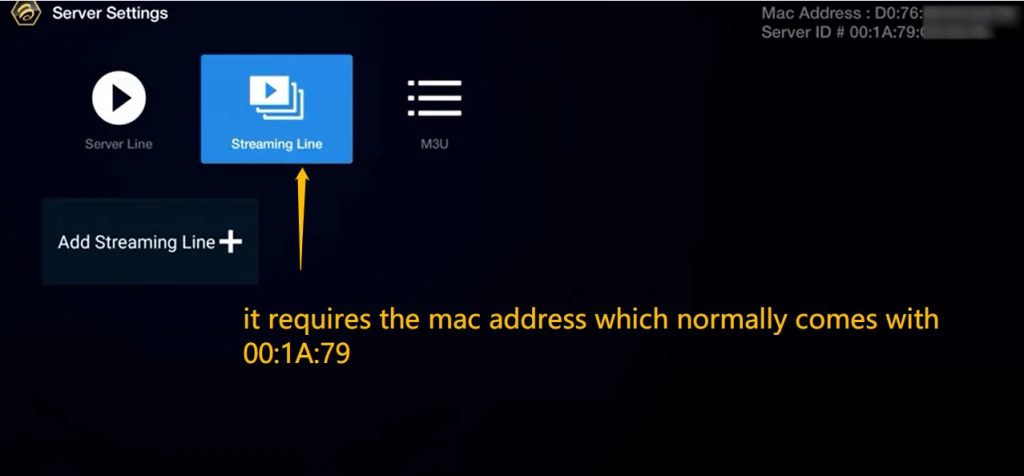
  3. Select M3U for a playlist link, or Streaming Line / Portal for a MAC-based subscription.
  4. For M3U, paste the complete playlist URL and save it.
  5. For portal setup, provide your device MAC address to support and enter the assigned portal URL.
  6. Save, synchronize channels and test playback. Ethernet may offer better stability.

Reference screenshots

These screenshots come from an earlier version of the setup guide. Interface details may vary.
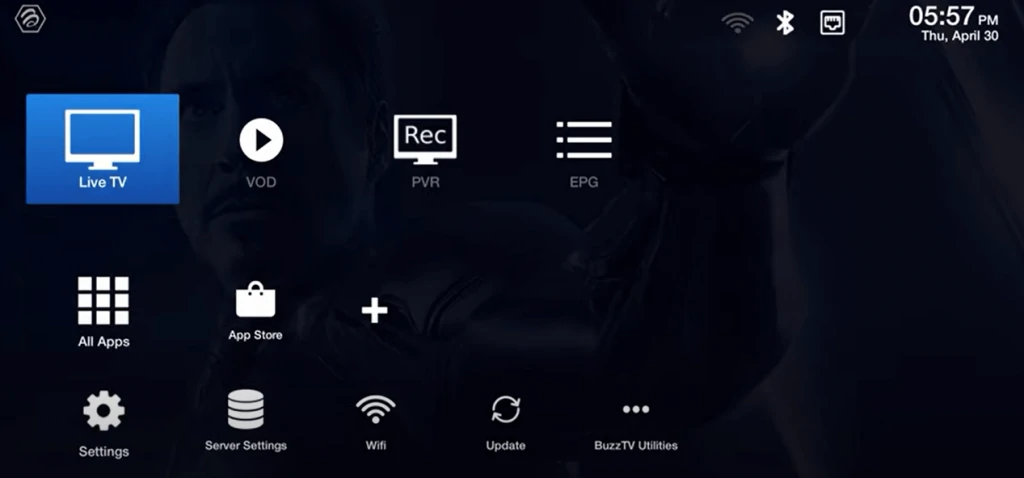
BuzzTV XR 4000 reference screenshot 1
BuzzTV XR 4000 reference screenshot 2
Need help? Double-check your details and contact IPTV4CA support if your setup does not load.

MAG Devices — Complete Setup

Portal setup. Follow each step in order and check the subscription details carefully.

  1. Connect your MAG set-top box to the TV and internet.
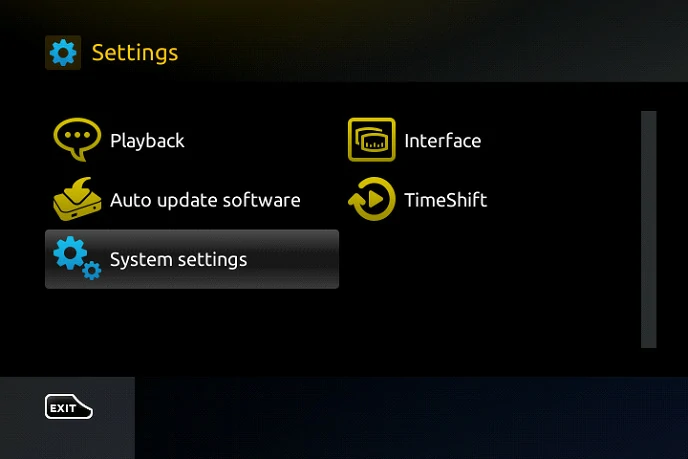
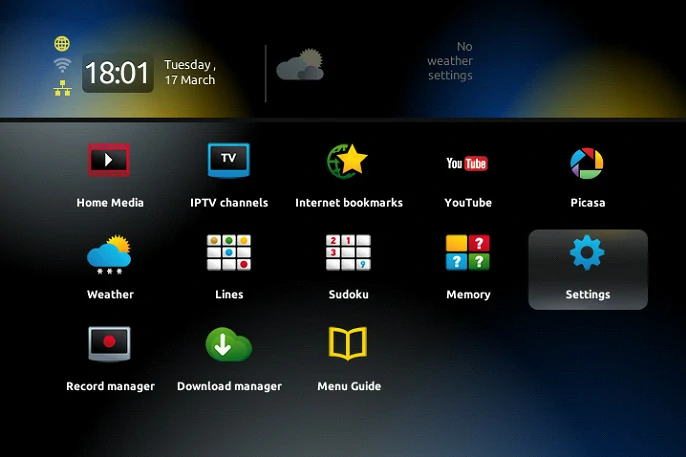
  2. Open Settings using the home screen or SET / SETUP on the remote.
  3. Navigate to System Settings → Servers → Portals; wording varies by model.
  4. Enter Portal 1 Name: IPTV4CA.
  5. Enter the exact Portal 1 URL supplied for your subscription. Do not copy a portal URL from another service.
  6. Press OK to save, restart the portal if required and check that the registered device loads channels.

Reference screenshots

These screenshots come from an earlier version of the setup guide. Interface details may vary.
MAG Devices reference screenshot 1
MAG Devices reference screenshot 2
Need help? Double-check your details and contact IPTV4CA support if your setup does not load.

What is a MAG MAC Address? — Complete Setup

Find & register your address. Follow each step in order and check the subscription details carefully.

  1. A MAC address is a hardware network identifier. A supported MAG portal may use it to associate your device with your subscription.
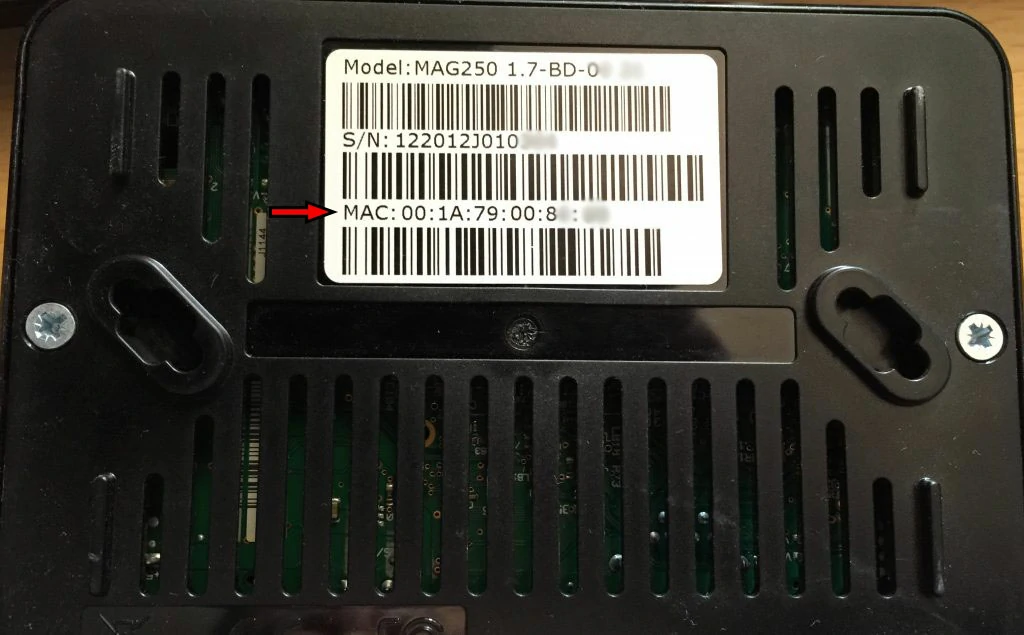
  2. Find the MAC address on the label on the bottom or back of your MAG box.
  3. Alternatively, open Settings → System Settings or Device Information and look for MAC Address.
  4. A typical example looks like 00:1A:79:XX:XX:XX. Your actual address will be different.
  5. Copy the complete address exactly and provide it through IPTV4CA’s device configuration process.
  6. If you replace the box, contact support to update the registered address. A MAC address alone does not activate service.

Reference screenshots

These screenshots come from an earlier version of the setup guide. Interface details may vary.
What is a MAG <strong class=MAC Address? reference screenshot 1″/>
Need help? Double-check your details and contact IPTV4CA support if your setup does not load.
HELP & DEVICE ADVICE

Make your setup easier

Choose a reliable player, use the correct subscription details and check device compatibility before buying new hardware.

XC API or M3U?

Use Xtream Codes API when your player supports server URL, username and password. Use M3U when you have a playlist URL.

Reduce buffering

Use Ethernet where possible or strong Wi-Fi. Restart your router, update your streaming player and close unused apps.

Fire TV or MAG?

Fire TV supports various apps. MAG receivers typically use a registered MAC address and a portal URL. Confirm compatibility first.

Before purchasing

Check app availability, device updates, retailer reputation, warranty and return options. A device does not include a subscription.

Where to buy devices

Shop Fire TV, streaming boxes or MAG receivers by region. Search the retailer for your preferred device and check local stock.

PERSONAL DEVICE SUPPORT

Need help buying or setting up your device?

Contact IPTV4CA for advice on Firestick, MAG boxes, compatible players and subscription setup.

Chat on WhatsApp